Turn Any Video Reference into a Short AI Video — with Omni Flash AI
Drop in a reference video, image, or first/last frame, then let Omni Flash AI carry the style, motion, and camera direction into a new short clip. Start in the browser, preview the credit cost, and download a clip ready for social, product ads, and explainers.
Find Inspiration in the Showreel
Browse real Omni Flash clips paired with their source references. Pick a direction you like, copy the setup, and use it as the launch point for your own short.
Reference-First Video Generation
Omni Flash turns the references you already have — a clip, an image, or a pair of frames — into a new short video. Four workflows, one credit pool, every output downloadable.
Video-Reference-to-Video
Upload a reference video and let Omni Flash inherit its style, motion language, and camera direction in a new short clip. Lock the look you already love instead of describing it from scratch — the fastest way to keep brand and creative consistency across a campaign.
Try Omni Flash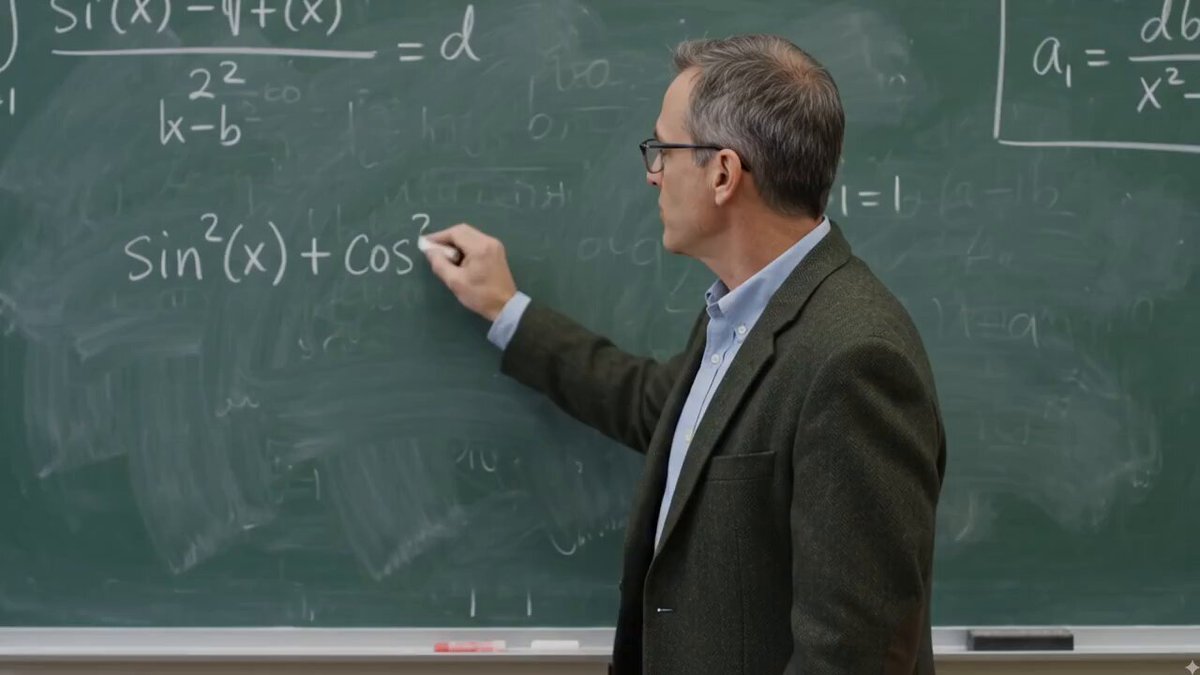
Reference-Image-to-Video
Drop one to three reference images — a product shot, a moodboard, a character sheet — and Omni Flash uses them as visual anchors. Stay close to the source while still exploring camera moves, lighting, and pacing.
Try Omni Flash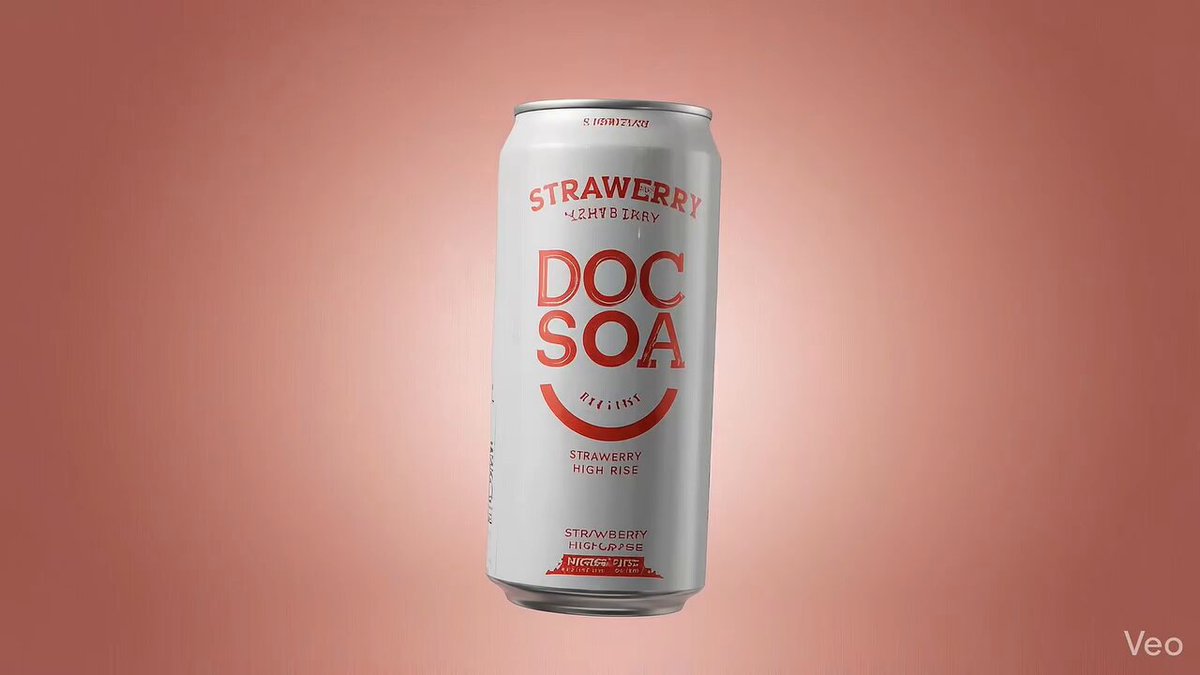
Frames-to-Video & Text-to-Video
No reference yet? Start from a first/last frame for a planned transition, or write a prompt with subject, motion, camera, lighting, and mood. Useful for first-pass concepts before you have a reference to lock against.
Try Omni Flash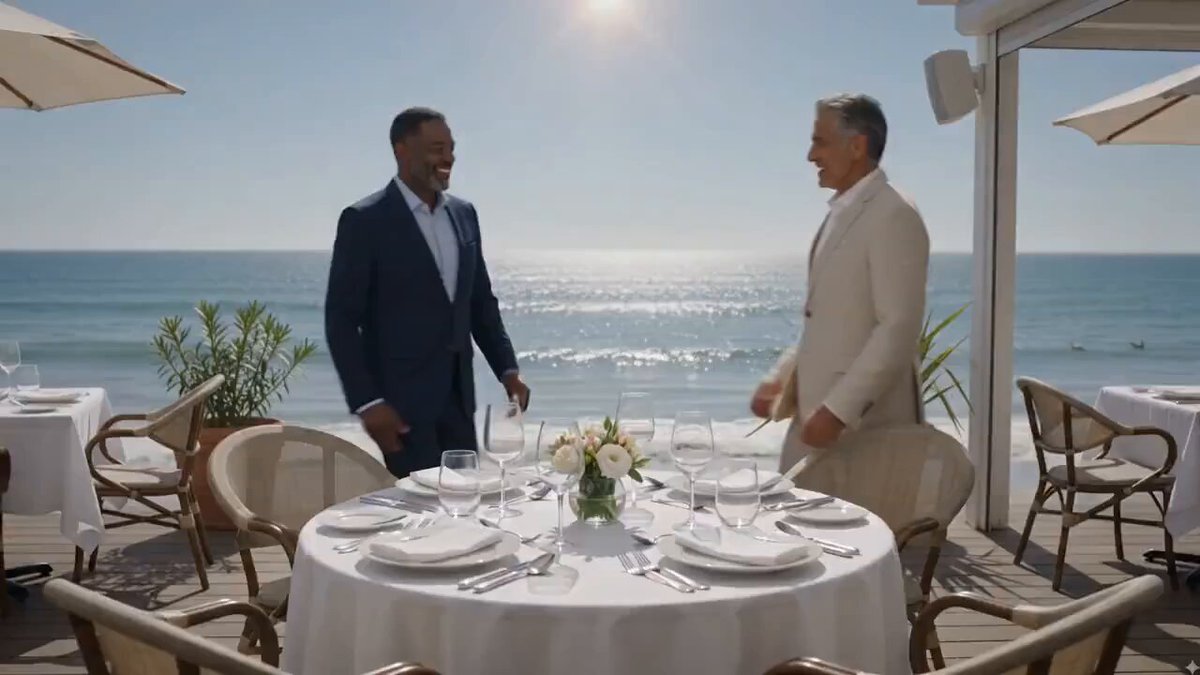
Asset Library & Reference Reuse
Every clip you generate is saved in your workspace and ready to act as the next reference. Pick a previous winner, regenerate variants from it, and keep an entire campaign anchored to one visual source.
Try Omni Flash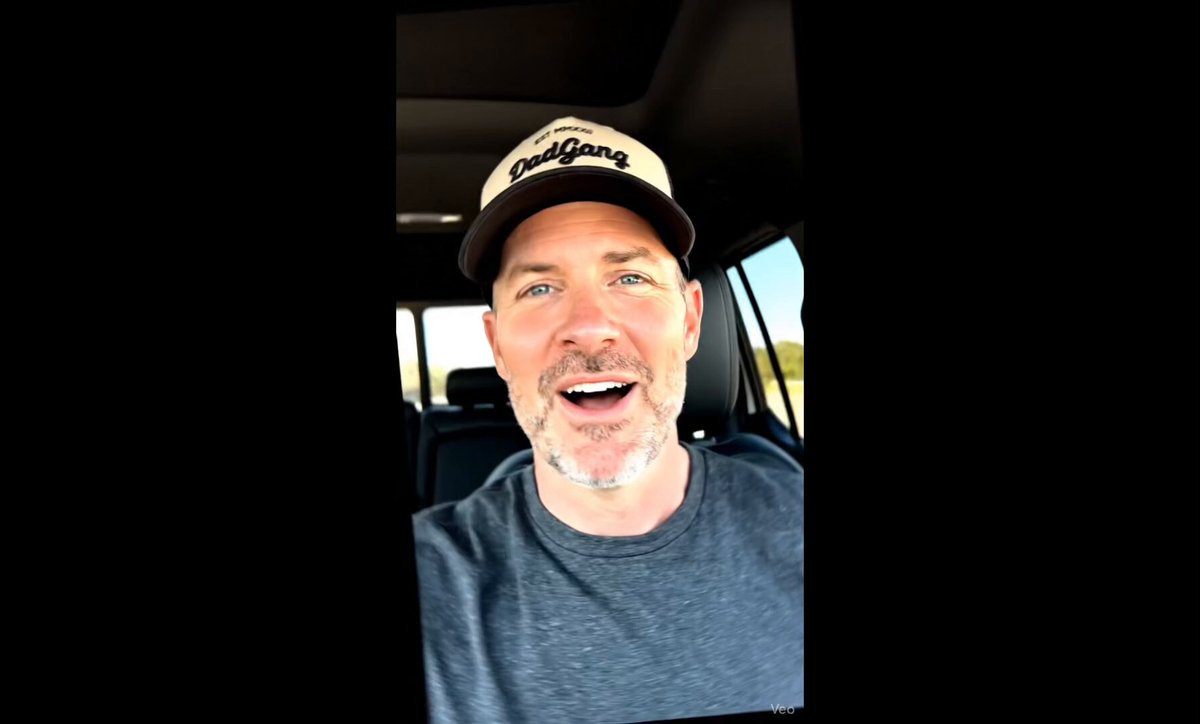
Why Choose Omni Flash AI for Reference-Driven Video
Omni Flash is built for one clear job: turn a reference — a clip, an image, or a pair of frames — into a usable short video in the browser. Generator, settings, credits, and asset library all point at that outcome.
Reference Drives the Result
Practical Output, Not Demo Hype
Credit-Safe Generation
Browser-Based Workflow
3 Steps from Prompt to Short Video with Omni Flash
Step 1: Pick the scene type
Choose text-to-video for first ideas, frames-to-video for planned transitions, or reference-to-video when product and style consistency matter. The form adapts to the inputs you need.
Step 2: Describe the result and confirm settings
Write a prompt with subject, motion, camera, lighting, and mood. Select aspect ratio and resolution, review credit cost, then submit — vague prompts in, vague clips out.
Step 3: Preview, download & iterate
Generation runs in the background. Preview the result, download the clip, or change one variable at a time. Failed generations are refunded, so iterating costs less.
Who Uses Omni Flash
Short-form creators, e-commerce teams, founders, and educators use Omni Flash to turn ideas into short video clips — here is what each workflow looks like in practice.
TikTok, Shorts, Reels, anime edit, meme, and faceless-channel creators use Omni Flash to test visual directions before filming or editing.
Shopify sellers, DTC brands, and paid social marketers use Omni Flash to produce more product video concepts without booking a shoot.
Indie hackers, SaaS marketers, and launch teams use Omni Flash to make product stories visible before hiring a video team.
Course creators, teachers, and documentation teams use Omni Flash to add short visual scenes between explanations.
Generate a 6–8 second vertical opening for a YouTube Short — visual hook first, voiceover later.
Upload a still image and turn it into a moving TikTok post with subtle camera moves and lighting shifts.
Generate cinematic B-roll for faceless channels — atmospheric scenes that read clean over voiceover.
Generate several visual hook directions from the same prompt before committing to the final edit.
Turn a product image into a short motion ad concept — useful before deciding which angle is worth a real shoot.
Generate seasonal and promo variants of the same product clip — holiday, sale, launch — from a single reference.
Create a short motion asset for a landing page hero — vertical, horizontal, looping, or static-cut.
Compare different product hooks for TikTok, Meta, and YouTube Shorts using the same prompt with different framings.
Generate a short visual teaser for a feature release — show momentum and emotion, not just screenshots.
Produce supporting B-roll for a product launch post — clips that work in social, blog, or email.
Visualize an abstract concept for an investor update or internal review without slowing down on production.
Create a motion background for a demo or pricing page hero — subtle, looped, brand-safe.
Create a short visual analogy that illustrates a concept — physics, math, abstract systems, business cases.
Generate hero scenes for a course trailer — visuals that hint at the lesson without giving away the content.
Turn a flow-diagram idea into a short animated scene — easier to remember than a static slide.
Generate short scenario clips for onboarding or compliance training — character-light, situation-heavy.
Example Use Cases
How creators describe their Omni Flash workflow
Omni Flash vs Veo 3.1 vs Sora 2
| Omni Flash | Veo 3.1 | Sora 2 | |
|---|---|---|---|
| Clip Duration | Short clips up to 8s per generation; multi-clip workflow for longer stories | 8s native clips per generation | Up to ~20s per clip on Pro tier |
| Reference Inputs | Reference video, reference images, first/last frames, and text prompts in a single workflow | Reference images and text prompts; no native video-to-video | Text plus a single image; no multi-reference video conditioning |
| Style & Motion Inheritance | Inherits style, motion language, and camera direction directly from a reference clip — no re-describing the look | Cinematic prompt fidelity with image references; reference-driven motion is limited | Multi-shot reasoning from a text prompt; no clip-as-reference inheritance |
| Visual Quality | 720p / 1080p with native audio; vertical and horizontal aspect ratios | 720p / 1080p with native audio, dialogue, and ambient SFX | Up to 1080p (4K on Pro tier) with synchronized audio |
| Best For | Reference-driven brand-consistent clips, product ads, explainers, and campaign variants | Cinematic short-form and vertical narrative clips from text + image | Long-form scenes and multi-shot storytelling from text |
Swipe sideways to see all columns
Omni Flash AI — Frequently Asked Questions
Ready to Create Your First Omni Flash AI Video?
Start with a simple prompt or a single reference image. Generate, preview, and download a short clip in the browser — credits are shown before you submit, and failed generations are refunded.
Free starter credits on signup · No credit card required · Failed renders refunded